

How to Fix “This Site May Be Hacked” Warning in WordPress
Seeing a “This site may be hacked” message in Google search results can be alarming for any website owner.
This warning usually means Google has detected suspicious activity, spam pages, malicious redirects, or malware on your WordPress website.
Besides damaging trust, it can significantly reduce your traffic and search rankings.
In this guide, you’ll learn:
- Why Google displays this warning
- How to identify the cause
- Step-by-step instructions to fix it
- How to prevent it from happening again
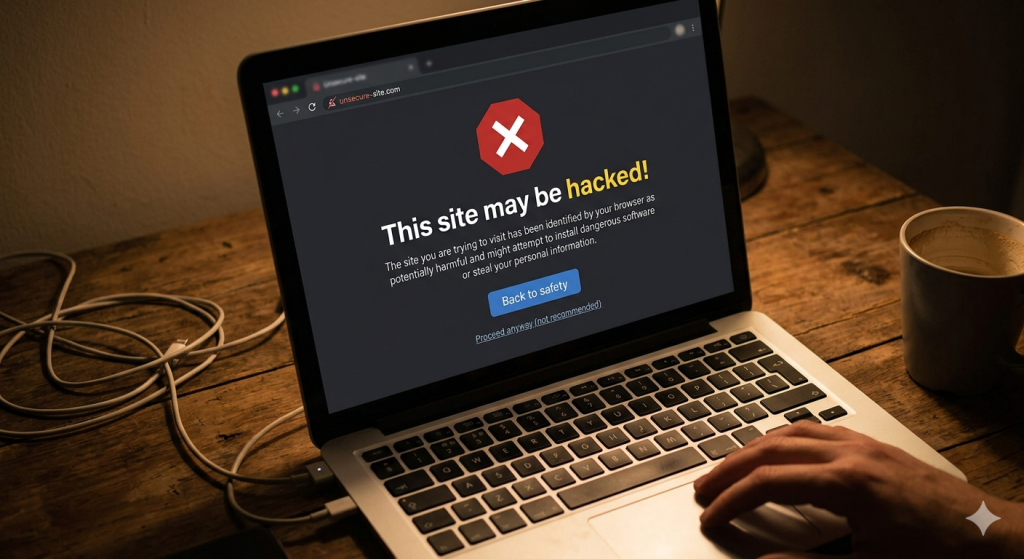
What Does “This Site May Be Hacked” Mean?
Google shows this warning when its systems detect signs that your website may have been compromised.
Google may discover:
- Hidden spam pages
- Malicious redirects
- Injected JavaScript
- SEO spam content
- Malware files
- Suspicious code modifications
The warning is designed to protect users from harmful websites.
Common Reasons WordPress Websites Get This Warning
Outdated plugins and themes
Attackers frequently exploit vulnerable plugins and themes.
Weak passwords
Weak login credentials make brute-force attacks easier.
Hidden malware backdoors
Hackers often leave hidden files that allow them to regain access.
Infected hosting environments
Shared hosting accounts can sometimes spread infections between sites.
SEO spam injections
Attackers inject spam pages targeting keywords like:
- Pharma terms
- Gambling terms
- Fake products
- Cryptocurrency scams
Signs Your Website Has Been Hacked
Look for these warning signs:
- Sudden traffic drops
- Unknown pages appearing in Google
- Redirects to other websites
- New admin users
- Hosting security notifications
- Website slowdown
If several of these appear together, malware may be present.
How to Fix “This Site May Be Hacked” in WordPress
Step 1: Put Your Website Into Maintenance Mode
Temporarily limit access while investigating the issue.
This prevents visitors from landing on compromised content.
Step 2: Create a Full Backup
Before making changes:
- Backup files
- Backup database
- Download everything locally
Never skip this step.
Step 3: Scan Your Website
Use trusted tools to detect suspicious files.
Examples:
- Wordfence
- Sucuri Scanner
- Hosting security scanners
Remember that automated tools may miss hidden infections.
Step 4: Remove Malware and Spam Pages
Look for:
- Unknown PHP files
- Spam pages
- Injected JavaScript
- Suspicious admin accounts
If you need detailed cleanup instructions, read our guide on how to remove malware from WordPress.
Step 5: Remove Hidden Backdoors
Backdoors often hide in:
- /wp-content/uploads/
- /wp-includes/
- Plugin directories
- Theme files
Removing visible malware alone may not solve the problem.
Step 6: Update WordPress, Themes, and Plugins
Please Update WordPress core, Themes, and Plugins.
Delete anything unused.
Step 7: Request a Review in Google Search Console
Once your site is clean:
- Open Google Search Console
- Go to Security Issues
- Review detected problems
- Click Request Review
- Explain what actions were taken
Google generally reviews requests within a few days.
Real Example: Cleaning a Hacked Website
We recently worked on a website infected with hidden redirects and spam injections that triggered Google’s warning message.
See our WordPress malware removal case study to understand the full process.
When You Should Get Professional Help
You should consider expert assistance if:
- Malware keeps returning
- Traffic has dropped sharply
- Redirects continue appearing
- Google warnings remain after cleanup
Our WordPress malware removal service includes manual cleanup, security hardening, blacklist assistance, and follow-up protection.
How to Prevent Future Security Warnings
- Keep plugins updated
- Remove unused plugins
- Use strong passwords
- Install a firewall
- Enable two-factor authentication
- Use secure hosting
Security should be part of ongoing website maintenance.
Frequently Asked Questions
How long does Google take to remove the warning?
After requesting a review, Google often responds within a few days.
Will this warning affect SEO rankings?
Yes. Traffic and rankings can drop significantly while warnings are active.
Can I remove the warning without cleaning malware?
No. The underlying issue must be resolved before Google removes the warning.
Does reinstalling WordPress fix the problem?
Not always. Hidden malware and database injections can survive a reinstall.
Final Thoughts
The “This Site May Be Hacked” warning should never be ignored. Fast action helps protect your visitors, preserve rankings, and prevent long-term damage.
Cleaning malware completely and securing the website afterward is essential for long-term recovery.
